Beginner 📅 Last Updated: July 1, 2026 ⏱️ 10 min read 🦙 Ollama
How to Install Ollama and Run Your First Local AI Model
⚡ Quick Answer
Run curl -fsSL https://ollama.com/install.sh | sh on Linux/Mac, or download the Windows installer from ollama.com. Then run ollama run llama3.1:8b to start chatting with a local AI. You need at least 8GB RAM (16GB recommended) and ideally an NVIDIA GPU with 6GB+ VRAM.
Who This Is For
You should read this if: You have never run a local AI model before and want to get from zero to chatting in under 10 minutes.
Skip this if: You already have Ollama installed and working. Go to Ollama vs Open WebUI vs LM Studio instead.
What You Need
- OS: Windows 10/11, macOS, or Linux
- RAM: 16GB minimum (8GB works but tight)
- GPU: NVIDIA with 6GB+ VRAM recommended (not required — CPU works but slower)
- Storage: 5GB free (models are large)
- Time: 10 minutes
🔬 Tested On
Machine: MSI laptop (dual GPU setup)
GPU: NVIDIA RTX 5070 Ti Laptop (12GB) + RTX 5070 (12GB)
CPU: Intel Core Ultra 7 255HX (20 cores)
RAM: 96GB
OS: Ubuntu 26.04 LTS
Date: July 2026
Step-by-Step Guide
Step 1: Install Ollama
Linux (Ubuntu/Debian):
curl -fsSL https://ollama.com/install.sh | shThis downloads and installs Ollama automatically. It detects your GPU and installs the right drivers.
macOS:
Download the installer from ollama.com/download and drag to Applications. Apple Silicon (M1/M2/M3/M4) is fully supported and fast.
Windows:
Download the Windows installer from ollama.com/download and run it. It installs as a background service.
Step 2: Verify Installation
ollama --versionYou should see something like ollama version is 0.4.0 (or newer).
Step 3: Run Your First Model
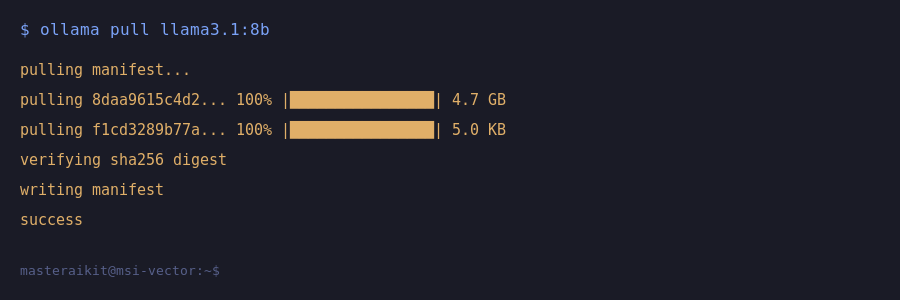
ollama run llama3.1:8bThis downloads the model (~4.7GB) and starts a chat session. The first download takes a few minutes depending on your internet speed.
Step 4: Start Chatting
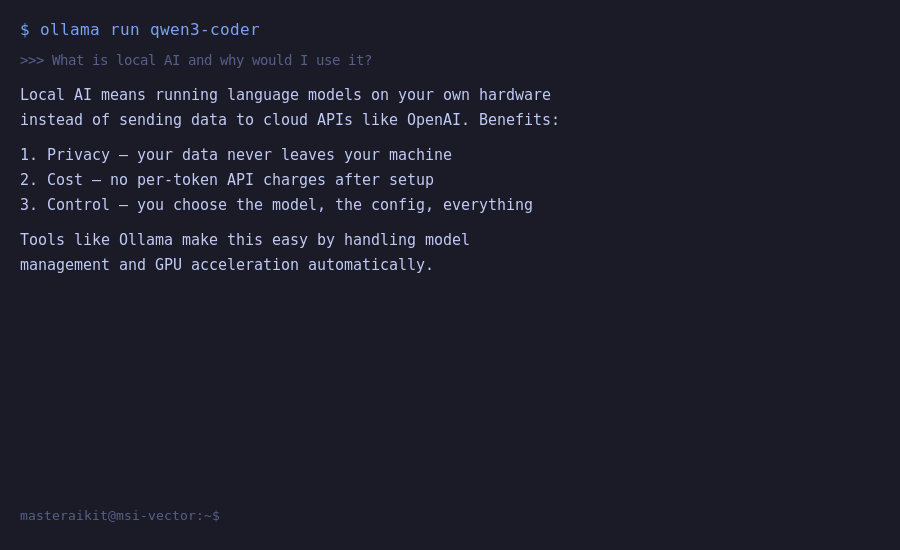
Once the model loads, you will see a >>> prompt. Type a question and press Enter:
>>>
>>> What are three good reasons to run AI locally instead of using ChatGPT?

1. Privacy — your data never leaves your machine
2. No API costs — it is completely free
3. Works without internet
Step 5: Verify GPU Acceleration
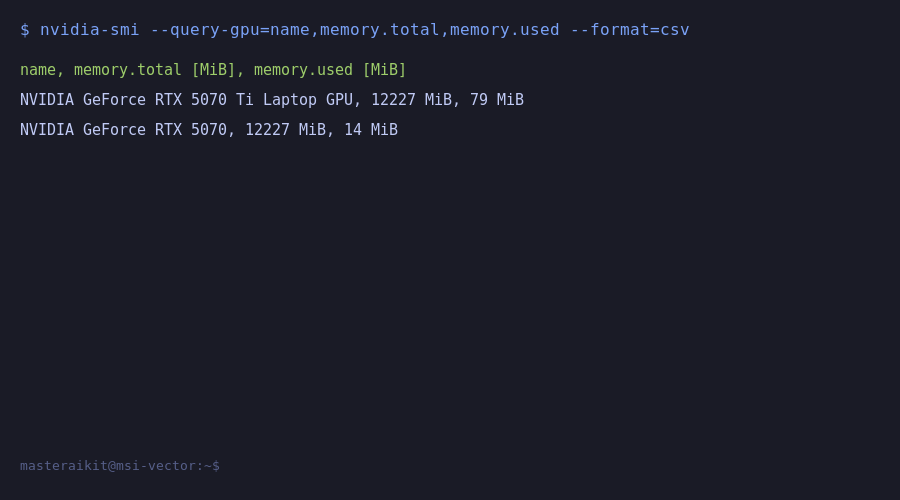
Open a new terminal and check if Ollama is using your GPU:
# Check GPU memory usage
nvidia-smi

# Or check Ollama status
ollama ps
You should see your GPU listed with memory in use. If you see CPU instead of your GPU name, see the troubleshooting section below.
Common Mistakes & Errors
Error 1: "ollama: command not found"
Cause: Ollama is not in your PATH, or you need to restart your terminal.
Fix: Close and reopen your terminal. On Linux, the binary installs to /usr/local/bin/ollama. On macOS/Windows, restart the app.
Error 2: GPU Not Being Used (Running on CPU)
Cause: NVIDIA drivers missing, or Ollama can not detect the GPU.
Fix (Linux):
# Check if NVIDIA driver is loaded
nvidia-smi

# If not installed on Ubuntu
sudo apt update && sudo apt install nvidia-driver-550

# Restart Ollama after driver install
sudo systemctl restart ollama
Error 3: "Error: pull model: connection refused"
Cause: Network issue or firewall blocking the download.
Fix: Check your internet connection. If behind a proxy, set HTTPS_PROXY environment variable.
Error 4: Out of Memory / Crash
Cause: Model is too large for your available RAM/VRAM.
Fix: Use a smaller model. Try ollama run llama3.1:8b-q4_0 (more aggressive quantization) or ollama run phi3:mini (smaller model).
Safe Defaults / Security Warning
⚠️ Security
By default, Ollama binds to 127.0.0.1:11434 (localhost only). This is safe. Do not change this to 0.0.0.0 unless you know what you are doing. Exposing Ollama to the network without authentication is a real security risk. See our Local AI Security Mistakes guide.
Recommended Setup (Tiered)
| Level | Model | VRAM Needed | Speed |
|---|---|---|---|
| Minimum | phi3:mini (3.8B) | 4GB / 8GB RAM | Fast even on CPU |
| Recommended | llama3.1:8b | 6–8GB VRAM | 30–60 tokens/sec on GPU |
| Quality | qwen2.5:14b | 12GB+ VRAM | 20–40 tokens/sec on GPU |
What I Would Do
Start with
llama3.1:8b. It is the sweet spot of quality and speed. Once you confirm everything works, tryqwen2.5:14bfor better reasoning. If your model feels slow, check Why Is Ollama So Slow? for performance fixes.
Frequently Asked Questions
How do I install Ollama on Windows, Mac, or Linux?
Ollama has native installers for macOS and Windows available from ollama.com/download - just download and run the installer. On Linux, use the one-line curl install script: curl -fsSL https://ollama.com/install.sh | sh. After installation, open your terminal and type 'ollama run llama3' to download and start chatting with your first model in under five minutes.
What are the minimum system requirements for Ollama?
You need at least 8GB of RAM to run small models like Llama 3.2 (3B) or Phi-3, though 16GB is recommended. A dedicated GPU with 8GB+ VRAM significantly speeds up inference, but Ollama will fall back to CPU if no GPU is detected. macOS Apple Silicon (M1/M2/M3) works exceptionally well due to unified memory.
Which model should I run first as a beginner?
Llama 3.1 (8B) is the best first model - strong general-purpose performance, fits in 8GB VRAM with quantization, and downloads in about 4.7GB. If hardware is limited, try Llama 3.2 (3B) or Phi-3 Mini, which run on 4GB RAM. For coding, start with Qwen2.5-Coder (7B).
How fast should Ollama be on my hardware?
With a GPU, expect 30-100 tokens per second for an 8B model - fast enough to feel instantaneous. On CPU-only, the same model may generate 5-15 tokens per second. Check your actual speed with 'ollama ps' to see loaded models and memory usage.
Is it safe to run Ollama locally - does it send my data anywhere?
Ollama runs entirely on your machine and does not send prompts or data to external servers. All inference happens locally. The only network activity is the initial model download from ollama.com, which is one-time per model.
📋 Get the Free Local AI Starter Checklist
Make sure your setup is complete. Get the free checklist with hardware verification, install steps, GPU check, and safe defaults.
🔧 Not Sure What Your PC Can Run?
Send me your specs and I will tell you exactly what models to use, what to install, and what to avoid. $99 launch price.
Get a $99 Setup Review →Want this guide as a printable checklist?
Last Updated: July 1, 2026 — Initial publish. Verified against Ollama 0.4.0.